
Knowledge Base › Using your client area
How to set up your business email on your phone (iPhone and Android)
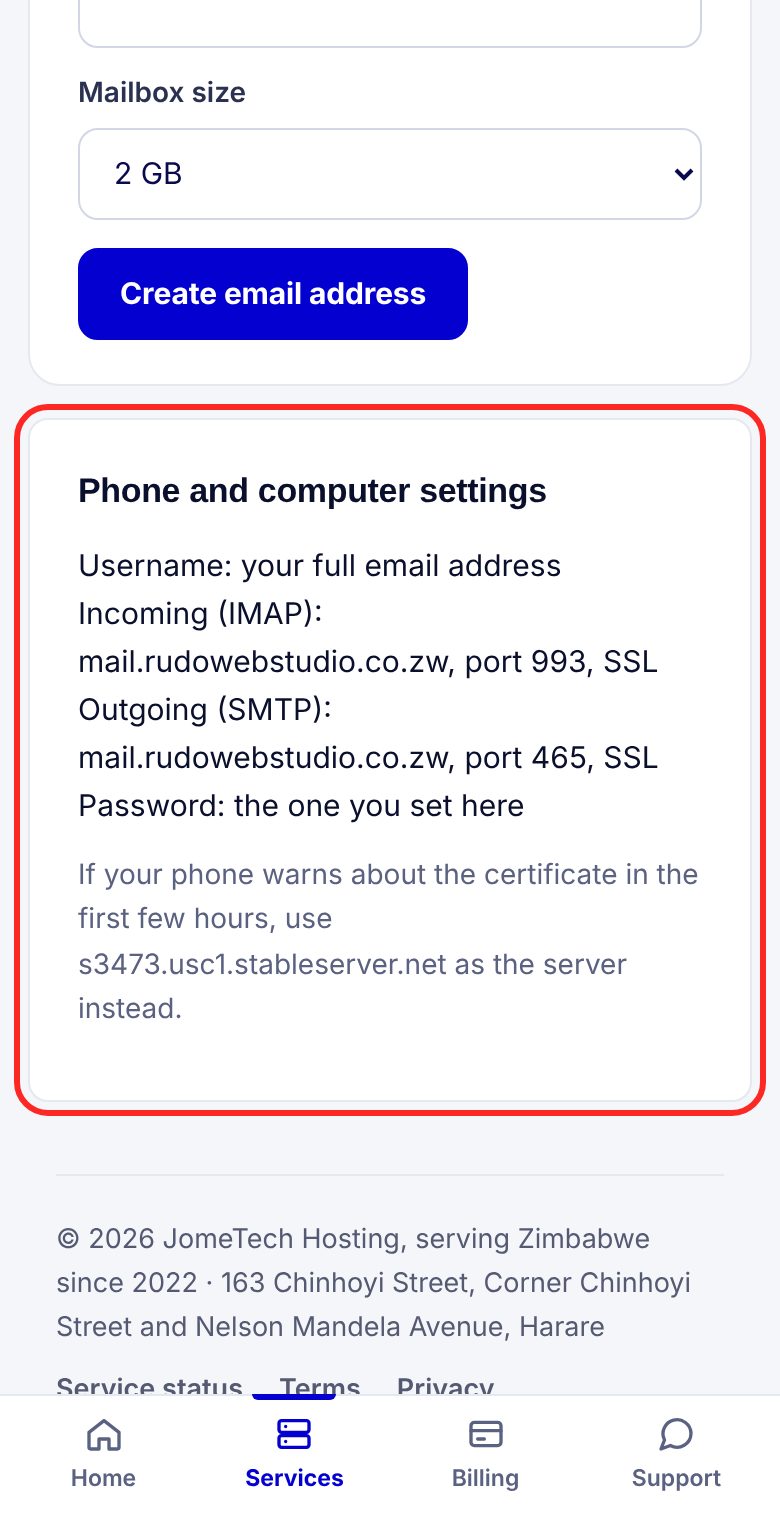
Your phone needs four details, shown at the bottom of the Email accounts page.
iPhone (Mail app)
- Open Settings, then Mail, Accounts, Add Account, Other, Add Mail Account.
- Enter your name, your full email address and its password, then tap Next.
- Choose IMAP. For both Incoming and Outgoing Mail Server, enter mail.yourdomain (for example mail.rudowebstudio.co.zw), your full email address as the user name, and your password. Tap Next, then Save.
Android (Gmail app)
- Open Gmail, tap your picture, then Add another account, Other.
- Enter your full email address, tap Manual setup, choose Personal (IMAP) and enter your password.
- Incoming server: mail.yourdomain, port 993, security SSL/TLS. Outgoing server: mail.yourdomain, port 465, security SSL/TLS. Tap Next until done.
A certificate warning in the first few hours after setting up a new domain is normal. Use the server name shown on your Email accounts page instead, or try again later.
Stuck? WhatsApp us on +263 78 377 1089 or open a support ticket.